

Happy New Year to all of our wonderful customers! We hope that you had a suitably relaxing break over the festive period and have returned this January recharged and ready to drive your 2026 performance and development initiatives forward through your usage of OpenBlend.
We’ve got several updates, improvements and new features to tell you about this month. We strongly recommend taking a moment to read through them. Below, you’ll find a summary of all enhancements going live this month, along with a handful of accompanying bug fixes.
The changes will go into the Demo environment on Thursday 15th January and we expect to launch into the live platform on Monday 19th January.
Overview
Here's a quick roundup:
- New: Project Objectives
- Improved: Creating Actions for Obstacles
- Updated: Categorisation of custom 1:1 Agenda Items
- New Features: Teams call AI generated summaries
- Fixed: Multiple tweaks throughout the tool (all listed below)
✨ NEW! Create specific objectives for Project Teams
OpenBlend has traditionally focused on the relationship between managers and their direct reports. However, many customers told us they also need a better way to support cross-team and cross-department collaboration. In response, we’ve now introduced "Project Objectives".
A new admin setting now allows you to create Project Teams, which can be fully customised and named to reflect a department, initiative, or specific project. Each Project Team is assigned an owner, who can create a Project Objective directly from their profile and align it to an existing Company Objective. The Project Team owner can also align relevant Team Objectives to the Project Objective.
Once a Project Team is created, admins can add any users to the team. Members will have visibility of the Project Objective and can align their own individual goals and objectives to it, enabling everyone involved to track progress and stay aligned around shared outcomes.
Below is a step-by-step guide to take you through how this new function can be set up:
1. As an Admin, head to Admin > Teams > Add new Project Team
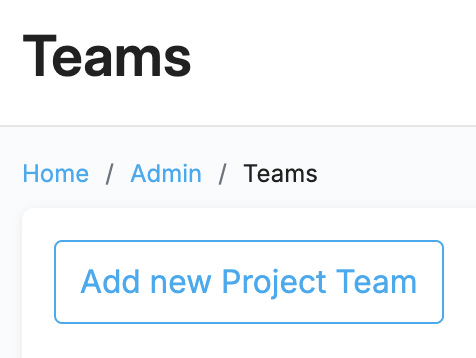
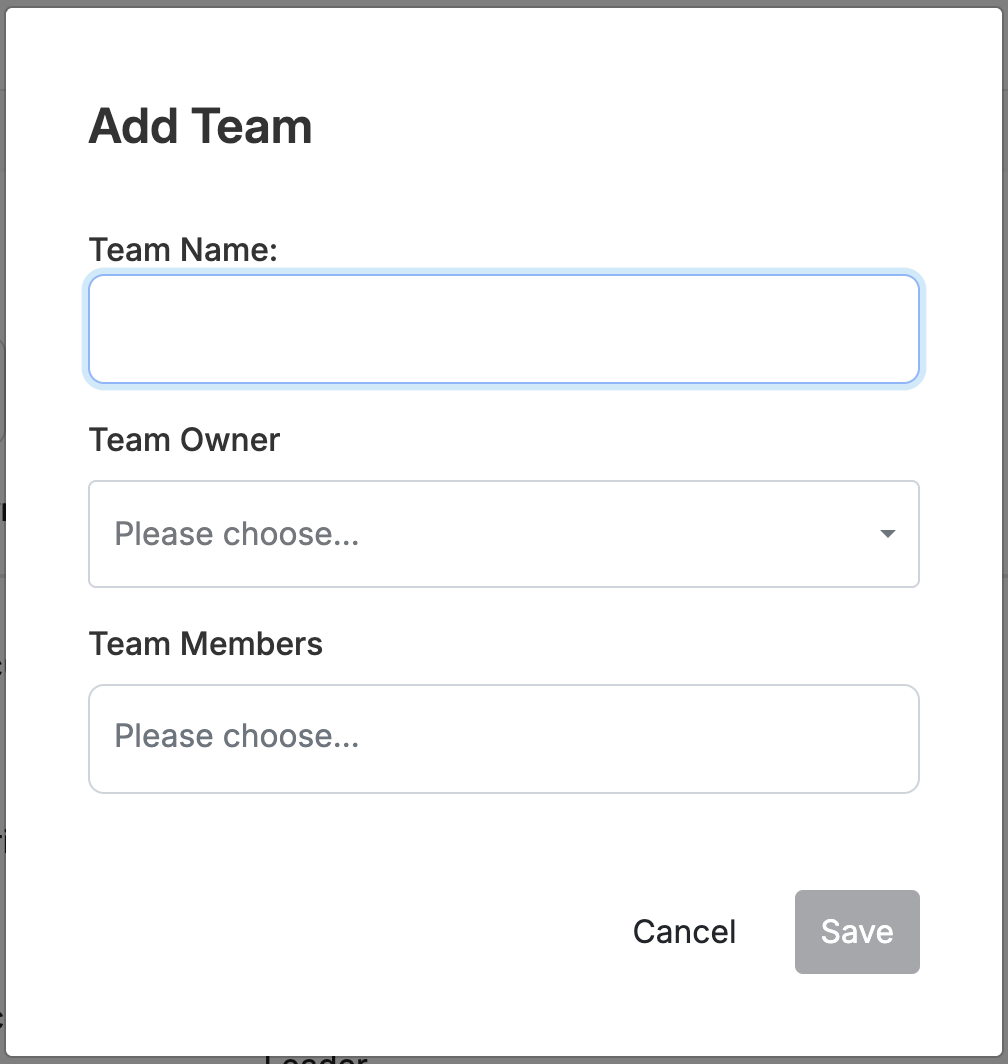
2. Set the Team Name (i.e. either a specific project or department name), the Team Owner (who will have control of setting the objective) and the Team Members (who needs visibility of the Project Objective)
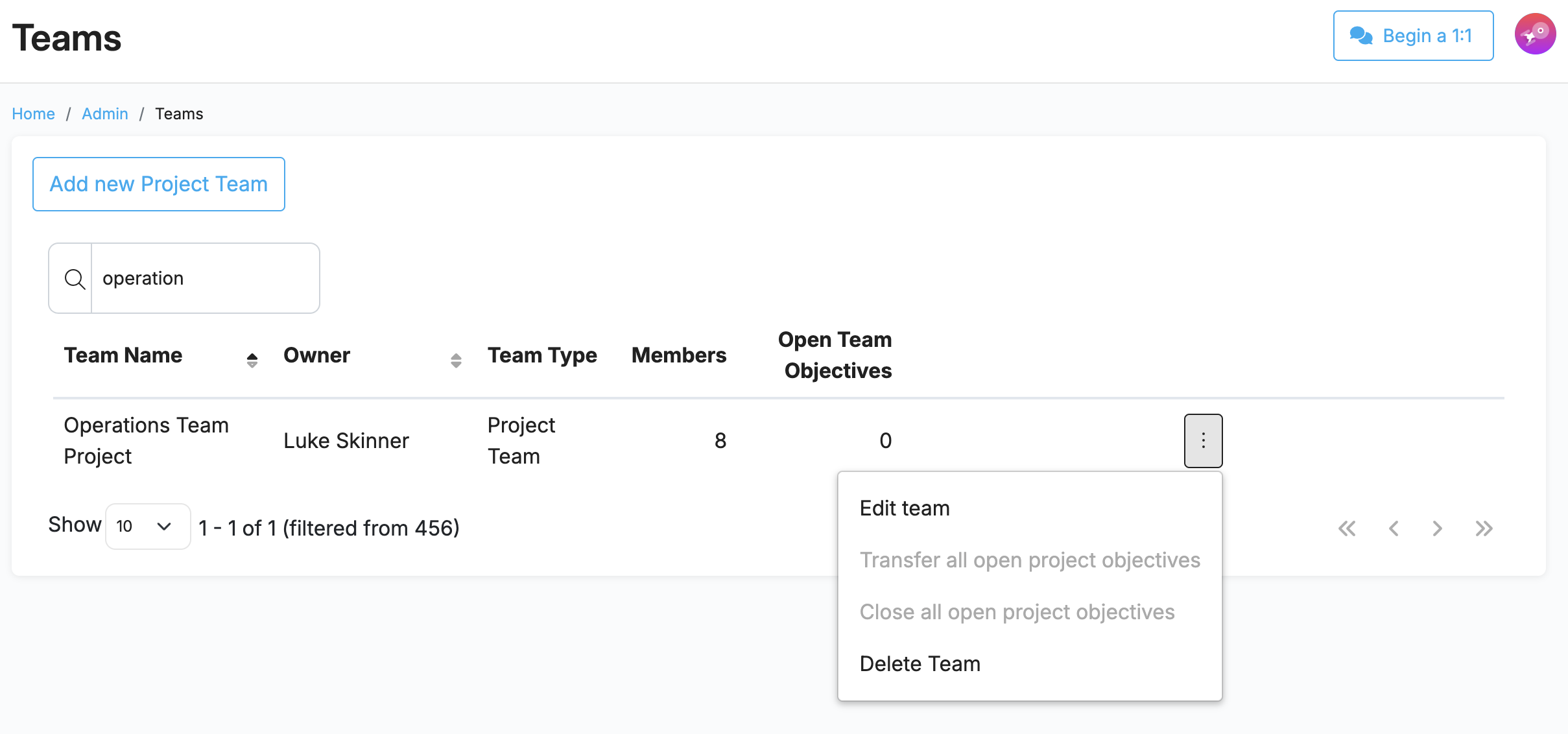
3. Once created, you can always come back at a later date and either edit or delete the Project Team
4. The Team Owner is now able to add a Project Objective by heading to Objectives in the 'Me' section of their own profile. Here you'll now have a new section entitled 'Project Objectives'. Simply click on the chevron to expand the new menu:
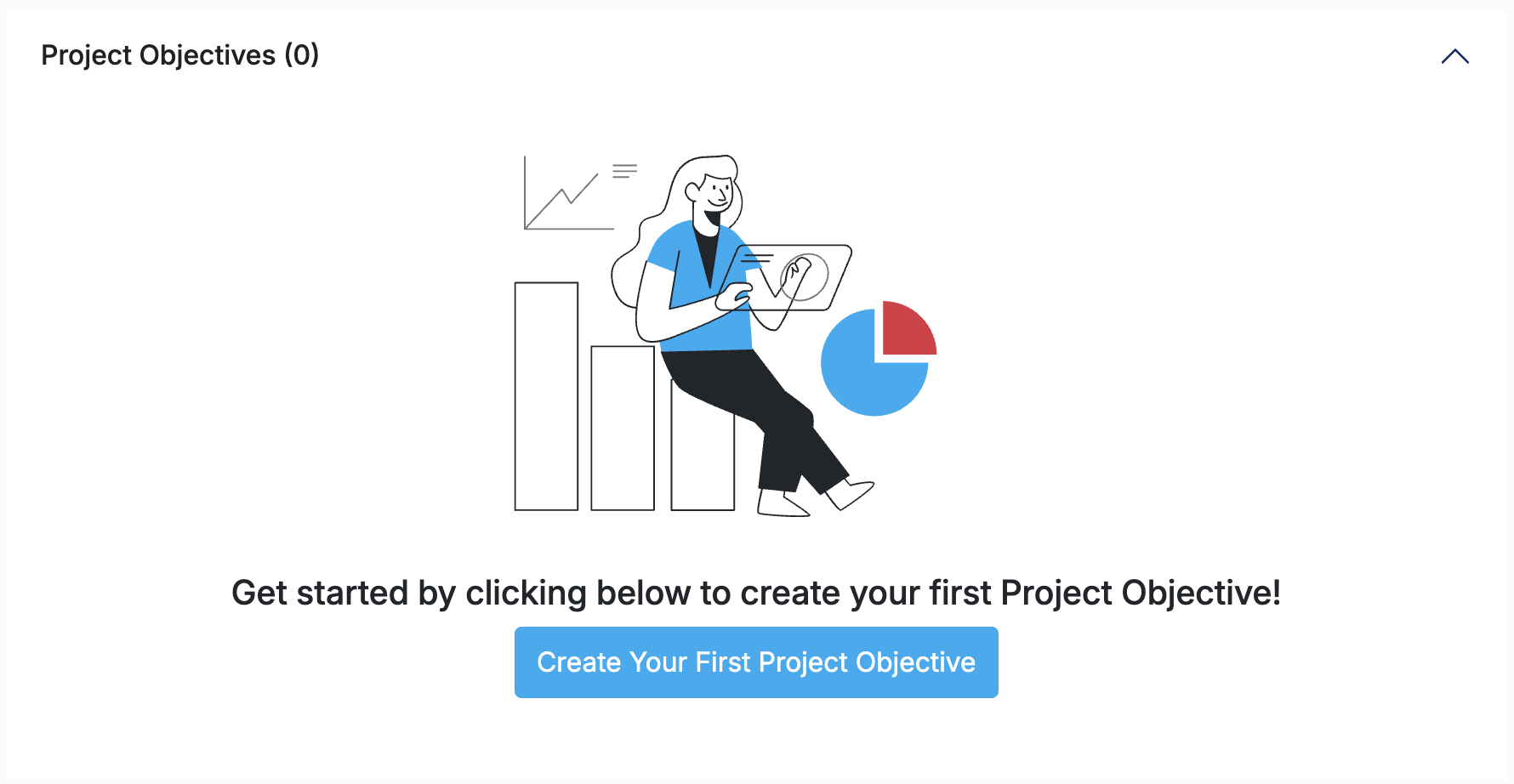
5. Click on the 'Create your First Project Objective' button to access the function. Creating a Project Objective works in the same way as creating any other goal or objective in the platform.
6. Once you've completed the information, before you create the objective, don't forget to align it with the appropriate Company Objective. We've also updated the Alignment menu to make it clearer for you to do this.
✨ IMPROVED! Better prompts for adding Actions to overcome Obstacles
The GROW model is at the heart of every 1:1 in OpenBlend. Based on customer feedback, we’ve enhanced the Obstacles stage to make it more practical and action-oriented.
Previously, obstacles were often identified but not consistently followed through. With this update, when an obstacle is recorded during a 1:1, managers and direct reports are now prompted to create an Action to address it straight away.
This ensures that once a challenge gets discussed, it leads to clear next steps, ownership, and most importantly, continual progress in between conversations.
Why this matters
- Turns blockers into tangible actions
- Improves accountability and follow-through
- Keeps 1:1s focused on forward momentum
Example in practice
Obstacle
“I’m struggling to prioritise my workload and often feel reactive, which is impacting delivery timelines.”
Action
“Book a 30-minute weekly prioritisation session with my manager to review key tasks, agree top three priorities, and remove or deprioritise lower-value work.”
By capturing this as an Action, both your managers and their direct reports are clear on what needs to happen next. It creates a tangible follow-up once the meeting ends and provides a clear point of accountability that can be reviewed in the next 1:1.
✨ UPDATED! Categorise any custom Focus 1:1 Agenda Items to help reporting
Reporting is central to understanding usage and trends in OpenBlend, and one of the most closely monitored areas for our customers is the frequency and focus of 1:1 conversations.
When we introduced custom 1:1 Focus Types, many customers used them not only to capture core discussion areas, but also to add bespoke agenda questions tailored to their organisation.
Until now, reporting on these custom agenda items has grouped them all under a single 'Custom' category, limiting visibility and insight. To address this, we’ve introduced additional categorisation options, allowing you to assign categories to custom agenda items at the point of creation. This means more accurate reporting on what’s being discussed in 1:1s and where time and attention are being spent.
How to set this up
- Navigate to Admin > Company Settings > 1:1s > Focus Types
- Edit an existing custom Focus Type using the pencil icon
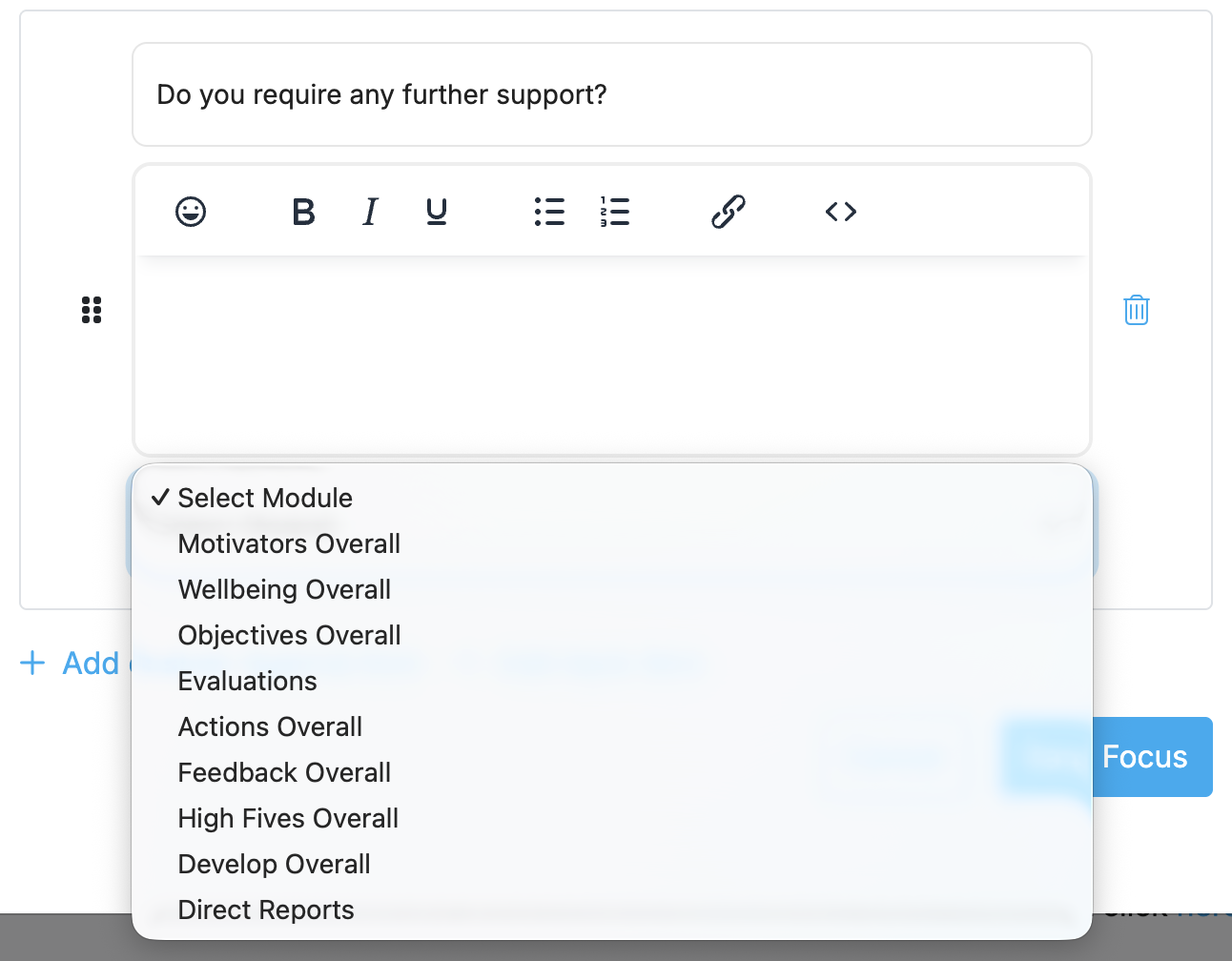
- Open the custom question and click the chevron to reveal the new category menu
- Select the appropriate category from the list
These categories will now be reflected in your reporting, giving you clearer insight into 1:1 discussion trends across your organisation.
✨ NEW FEATURES! Use AI to record notes from your remote 1:1s
A common piece of feedback from both managers and direct reports is that notes for an OpenBlend session are often written after a 1:1, rather than during it. This allows both parties to stay present and focused on the conversation, without attention being pulled away by note-taking.
The trade-off is that turning each 1:1 into clear, forward action can end up relying on memory and interpretation after the fact.
To support this, we’re excited to introduce the first version of AI-generated 1:1 call summaries in OpenBlend.
This early release is currently available for remote 1:1s conducted via Microsoft Teams only, while we continue to test accuracy, usability and customer feedback. Even in this initial phase, it marks a significant step forward in how 1:1s can be captured and reviewed in OpenBlend.
How it works
1. Start your 1:1 in OpenBlend as normal
2. Join a Microsoft Teams call (participants must be remote so speakers can be identified)3. In Teams, open the More menu and select Record and transcribe > Start recording
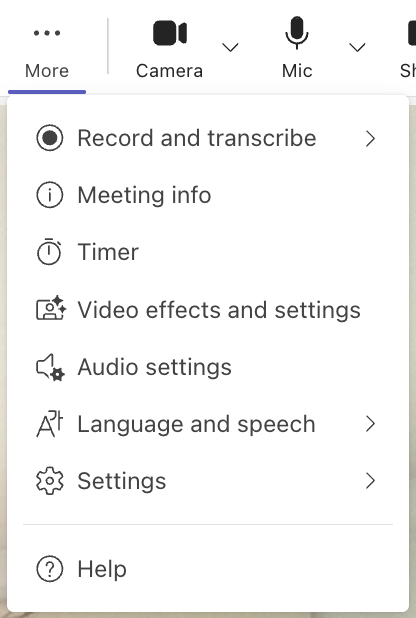
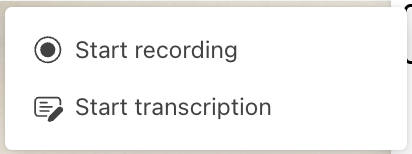
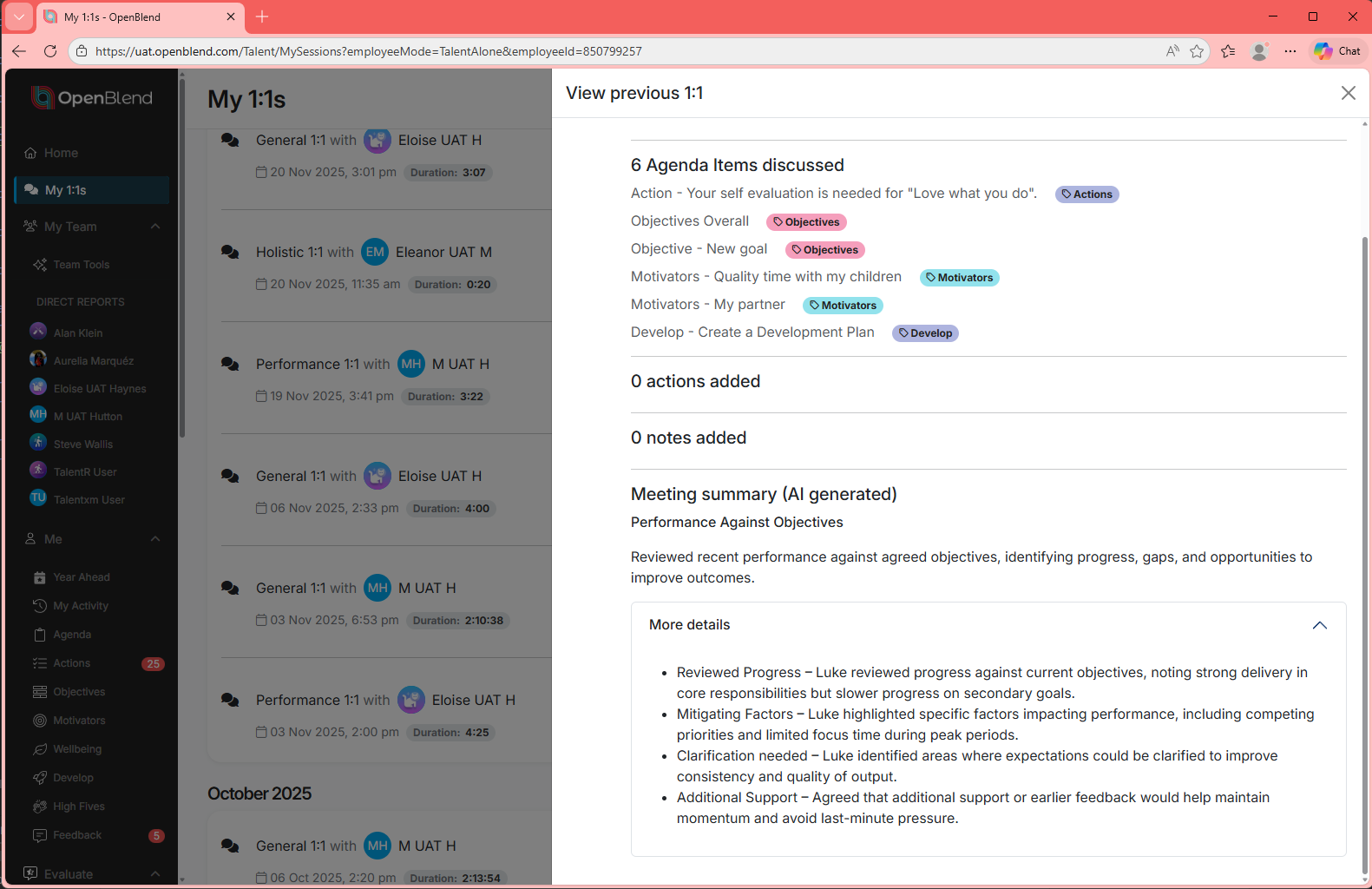
The call will be recorded, transcribed, and automatically summarised. Meeting notes typically appear in the Previous 1:1s section of your profile within around 30 minutes (often sooner). Each main discussion topic is categorised, with expandable sections to view more detailed notes. You can see an example of how this will look in the screenshot below:
✨ FIXED! Here's everything else we've done!
- Fixed an issue which was resulting in the in-tool tutorial for Motivators repeating on cycle for first-time users.
- Fixed a number of small issues which was affecting the behaviour in the Objectives module
- Fixed an issue affecting the discussion of Wellbeing in a First 1:1
- Updated time zones for Evaluate responses time-stamps (when the user is not on GMT)
- Improved functionality for monitoring and progressing Milestones (when using as a tracking metric for Objectives), and introduced an 'Overdue' banner for Milestones when required.
- Updated an issue in Evaluate which meant that deleted users were still showing on Calibration lists
- Updated behaviour in the Feedback module so that if you request feedback on a user, but do not include yourself in the reviewer list, then you can still see the feedback request (and related responses)
- Multiple other background performance enhancements to improve the flow of the UI for daily users.